Geometry
(Revised: 05/08/13)
The Geometry screen defines the overall size of a
buildings structural steel.
Name & Shape Selection:

Shape Name
A
name for the shape must be entered. This name is used to identify the shape
throughout the software and may be revised at any time.
Example
names may be; Office, Warehouse, Manufacturing, or any name you wish to use to
identify your building shape.
Building Size:
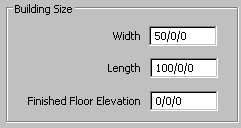
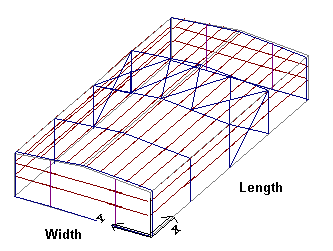
Width & Length
Enter
the wall width and length dimensions
 .
.
Finished Floor Elevation
Enter
the Finished Floor Elevation above the local Median above Sea Level (based upon
100'-0" elevation), if desired.
Profile:
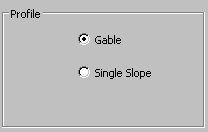
Gable
This
radio button defines the profile of the selected section. A gable roof has a
ridge.
Single Slope
This
radio button defines the profile of the selected section. A Single Slope roof
does not have a ridge.

Section:
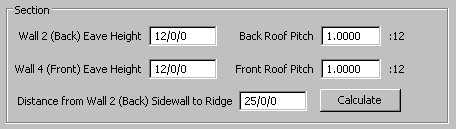
Wall 2 (Back) Eave Height
Enter
the Eave Height for the left side of the section.
Wall 4 (Front) Eave Height
Enter
the Eave Height for the right side of the section.
Back Roof Pitch
Enter
the Roof Pitch for the left side of the section.
Negative
pitches are not available on Single Slope sections. Wall 4 (Front) must be the
High side of a Single Slope building.
Front Roof Pitch
In
this edit box, enter the Roof Pitch for the right side of the section.
Ridge Distance
Enter
the Ridge Distance for the Back Sidewall.
Calculate
This
button can be used to assist you in defining a section.
„
How to use:
Leave
one of the Section edit box fields empty, then press the Calculate button.
The software will calculate and enter the correct dimension.